
Calendar Systems for ADHD at Work: Your Practical Guide
Calendar Systems for ADHD at Work: Your Practical Guide
TL;DR:
- An ADHD-friendly calendar simplifies commitments into one visible system with buffers and clear anchors. It emphasizes immediate capture, scheduled review, and personalization, reducing schedule overwhelm. Building a reliable, imperfect system through small steps creates sustainable time management for ADHD adults.
An ADHD-friendly calendar system is a single, visible source of truth that captures every commitment the moment it happens and protects your time with built-in buffers. That’s the whole thing. Not a color-coded masterpiece. Not a perfectly time-blocked week. Just one place, always open, always honest about where your time is going.
The must-have elements at a glance:
- One calendar only (no parallel systems, no “I’ll add it later”)
- Fast capture: log it now, sort it never
- Buffer time between every block, non-negotiable
- Visible anchors: something you can see without opening an app
Your first 15 minutes:
- Pick one calendar app (Google Calendar works well) and delete or hide every other calendar you’ve been half-using.
- Open it on your phone and turn on notifications for every event.
- Add one real commitment from this week, right now, with a 15-minute buffer before and after.
That’s your starting point. Everything else builds from here.
Table of Contents
- Why do standard calendars keep failing ADHD brains?
- What are the core principles of an ADHD-friendly calendar?
- How do you set up a working calendar system step by step?
- What do ready-to-use calendar templates look like for ADHD?
- Which tools and features actually support ADHD calendar use?
- When your calendar stops working, what do you fix first?
- Coach recommendations for making calendar habits stick
- How do you connect your calendar to other ADHD productivity tools?
- How do you set realistic time estimates when ADHD distorts time perception?
- How do you reinforce calendar habits when executive function gets in the way?
- Key Takeaways
- Why “good enough” beats perfect every time
- Ready for hands-on help with your calendar system?
- Sources and further reading
Why do standard calendars keep failing ADHD brains?
The calendar isn’t the problem. The mismatch between how most calendars are designed and how ADHD brains actually process time is the problem. Understanding that distinction matters for executive function challenges specifically, because the failure isn’t random.
Time blindness is the core issue. For many adults with ADHD, time doesn’t feel like a continuous flow. It feels like “now” and “not now.” A meeting at 3 PM might as well be next Tuesday until it’s suddenly happening in five minutes. Standard time-blocking assumes you can feel the passage of time and self-correct. Most ADHD brains can’t do that reliably without external cues.

Working memory compounds this. You see a calendar event, you close the app, and the event evaporates from your mental workspace. By the time you’re deep in a task, the 2 PM call doesn’t exist anymore. This is why time blindness at work is such a persistent issue, not a motivation problem.
Switch cost is the hidden killer of back-to-back scheduling. Transitioning from deep work to a client call isn’t instant. Your brain needs a runway. Schedule two things back-to-back and you’ll either be late to the second or you’ll blow the first one trying to wrap up in time.
The most common calendar mistake for ADHD adults isn’t forgetting to use the calendar. It’s using the calendar as a to-do list. When every task, errand, and vague intention gets a time slot, the calendar becomes noise. You stop trusting it. You stop looking at it. The fix is simple: the calendar is for commitments and protected time only. Tasks live somewhere else.
Pro Tip: If your calendar has more than eight events on a typical day and half of them are tasks you wrote to yourself, that’s your failure cascade. Strip it back to meetings, deadlines, and protected blocks. Move everything else to a task app.
What are the core principles of an ADHD-friendly calendar?
These rules aren’t suggestions. They’re the structural load-bearing walls. Remove one and the system wobbles.
-
One-calendar rule. Every commitment goes into one master calendar, immediately. The one-calendar rule exists because split systems create the “I’ll remember it later” failure mode, and ADHD brains don’t remember it later.
-
Capture first, sort never. Log it the second you hear it. Don’t wait until you’re at your desk. Don’t mentally file it. Your phone is always with you. Use it. Zero-friction capture is what separates systems that stick from systems that get abandoned by week two.
-
Protect, don’t prescribe. Use the calendar for commitments and time-protected blocks only. Deep work from 9–11 AM is a protected block. “Write report” is a task. Keep them in separate systems.
-
Buffer every transition. A mandatory 15-minute buffer between events accounts for task overflow and re-entry time. Build it into your default event duration so you never have to remember to add it.
-
Visible time anchors. A calendar you can’t see doesn’t exist. Print your weekly schedule and put it on the wall. Keep the app open on your second monitor. Printed visible calendars act as time anchors that digital-only setups simply can’t replicate.
-
Nightly review, five minutes. Check tomorrow’s calendar every evening. Confirm times, add buffers you missed, and identify your one most important task. This single habit cuts morning decision fatigue dramatically.
-
Personalize relentlessly. System failure means tool-brain mismatch, not a character flaw. Personalized systems built around what you can see and touch outperform any “best practice” that doesn’t fit your actual life.
Pro Tip: Set your default Google Calendar event duration to 45 minutes instead of 60. That built-in 15-minute gap between hours becomes your automatic buffer without any extra effort.
How do you set up a working calendar system step by step?
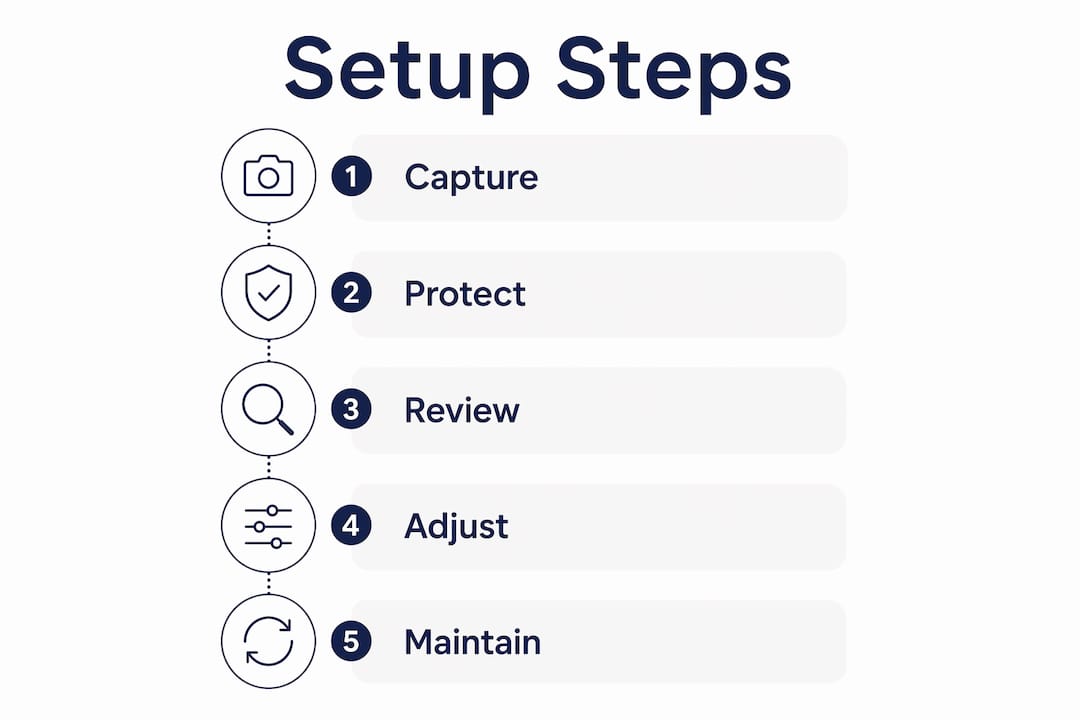
The workflow shape is simple: capture → protect → review → adjust. Every setup decision flows from that sequence.
| Step | What to do | Why it helps | Time needed |
|---|---|---|---|
| 1. Pick your single calendar | Choose Google Calendar as your master; archive or delete others | Eliminates split-system confusion | 5 min |
| 2. Set default event duration | Change default to 45 min in Settings → Event Settings | Auto-creates buffer time | 2 min |
| 3. Build your color scheme | Assign one color per life area (work = blue, personal = green, health = purple) | Visual scanning replaces reading | 5 min |
| 4. Turn on multiple notifications | Set reminders at 30 min and 10 min for every event | Compensates for time blindness | 3 min |
| 5. Create a capture shortcut | Add Google Calendar widget to your phone home screen | Removes friction from logging | 2 min |
| 6. Add mandatory buffer blocks | Block 15 min after every meeting as a recurring “transition” event | Prevents back-to-back collapse | 10 min |
| 7. Set up a weekly review slot | Block 30 min every Sunday evening as a recurring event | Keeps the system calibrated | 3 min |
Google Calendar specifics: In the left sidebar, hide every calendar that isn’t your master work calendar and your personal calendar. Two visible calendars maximum to start. Use the “Tasks” feature for to-dos, keeping them visually separate from time-blocked events. The mobile quick-add button (the “+” icon) is your capture tool. Use it every single time someone mentions a date, a deadline, or a meeting.
Evening triage checklist:
- Check tomorrow’s events and confirm all times are correct
- Add any commitments you captured during the day
- Identify your one most important task for tomorrow and note it in the event description
- Confirm buffer blocks are in place
What do ready-to-use calendar templates look like for ADHD?
Templates reduce the daily decision load. Pick the one that matches your day type and apply it without modification.
| Day Type | Sample Event Titles | Block Length | Buffer Rule | Color |
|---|---|---|---|---|
| Deep work day | “Deep Work: [Project Name]” | 90 min | 15 min before + after | Blue |
| Client-heavy day | “Client: [Name] — 1hr” | 45 min | 15 min between each | Green |
| Admin day | “Admin: Email + invoices” | 45 min | 10 min between tasks | Yellow |
| Creative sprint | “Creative: [Project] — no interruptions” | — | 30 min wind-down after | Purple |
| Travel/prep day | “Travel prep: pack + confirm” | 30 min | 15-minute buffer before departure | Orange |
Short-block vs. long-block options: If you lose focus after 30 minutes, use two 45-minute blocks with a 15-minute break rather than one 90-minute block. If you hyperfocus productively, protect longer blocks and schedule nothing around them.
Event naming matters more than most people realize. “Client: Maya — 1hr” tells you who, what, and how long at a glance. “Work on report” tells you nothing useful when you’re scanning a busy week. Concise, specific names mean less cognitive work every time you open your calendar.
- Use colons to separate category from detail: “Admin: Invoices,” “Call: Dr. Smith”
- Include the duration in the title for variable-length events
- Never use vague titles like “Stuff” or “Things to do” — they create avoidance
Which tools and features actually support ADHD calendar use?
The goal isn’t the most feature-rich app. It’s the one with the least friction between “I need to log this” and “it’s logged.”
| Feature | How to use it | ADHD benefit |
|---|---|---|
| Color-coded calendars | One color per life area, max 3–4 colors | Instant visual scanning, no reading required |
| Multiple notifications | Set 30-min and 10-min alerts for every event | Compensates for time blindness and hyperfocus |
| Default event duration | Set to 45 min in Google Calendar settings | Auto-buffer without manual effort |
| Quick-add (mobile) | Use the “+” button immediately when a commitment is made | Zero-friction capture on the go |
| Week view | Keep Google Calendar on week view as default | Shows the full picture, prevents overcommitment |
| Tasks vs. events | Use Tasks for to-dos, Events for time-protected blocks | Keeps calendar clean and trustworthy |
| Recurring buffer blocks | Create a 15-min “Transition” event after every regular meeting | Prevents schedule collapse automatically |
Analog options work alongside digital, not instead of it. Printed weekly calendars placed on a wall or desk provide a time anchor that a phone screen can’t. You don’t have to unlock anything, open an app, or remember to check it. It’s just there. A Time Timer or analog clock on your desk adds a visual countdown that makes time feel real rather than abstract. Print your Google Calendar week view every Sunday and pin it where you work.
ADHD apps and tools like focus timers and body-doubling platforms support the calendar system but don’t replace it. The calendar is the spine. Everything else attaches to it.
When your calendar stops working, what do you fix first?
Every system breaks. The question is whether you diagnose it fast or throw the whole thing out.
Common problems and quick fixes:
- “I keep missing events” → Add a second notification at 10 minutes. Print the weekly calendar and put it on your desk. Check it every morning before opening email.
- “My calendar feels overwhelming” → Hide all non-essential calendars. Reduce to two visible calendars maximum. Remove any task-style events and move them to a task app.
- “I never look at it” → Move the app to your phone’s home screen. Set a daily 8 AM alarm labeled “Check calendar.” Put a printed version on your wall.
- “I keep running over into the next thing” → You’re missing buffer blocks. Add a recurring 15-minute “Transition” event after every meeting this week.
- “I add things but forget to check” → Your review habit has lapsed. Reset the nightly five-minute check as a phone alarm, not a calendar event.
10-minute weekly triage checklist:
- Remove any events that didn’t happen and reschedule them
- Check the coming week for back-to-back blocks and add buffers
- Confirm your most important task for each day is visible
- Verify all recurring events are still accurate
Pro Tip: Create a “Buffer Template” in Google Calendar: a 15-minute recurring event called “Transition” that you can drag to follow any meeting. Having it pre-built means you add it in two clicks instead of building it from scratch every time.
Coach recommendations for making calendar habits stick
Habits don’t stick because of willpower. They stick because the environment makes the right behavior easier than the wrong one.
Nightly planning ritual: Five to ten minutes every evening. Open your calendar, check tomorrow, confirm your most important task, and close it. Do this at the same time, in the same place, every night. Attach it to something you already do, like brushing your teeth or making tea.
Body doubling for task starts: Body doubling is one of the most effective activation strategies for ADHD. Schedule a virtual co-working session or ask a colleague to be present when you start a difficult task. The external accountability lowers the activation barrier significantly.
Results-based scheduling: Instead of blocking time by the clock, block it by outcome. “Deep Work: finish client proposal draft” is more motivating than “Work: 9–11 AM.” Aligning blocks with energy cycles, not just clock time, is especially useful for self-employed ADHDers whose schedules have more flexibility.
Accountability micro-contracts: Tell one person what you’re doing in the next block and when you’ll report back. This doesn’t require a formal coaching relationship. A text to a friend saying “I’m starting the proposal now, checking in at noon” creates enough external structure to help.
The calendar isn’t a productivity tool. It’s a memory prosthetic. When you treat it that way, the pressure to use it perfectly disappears. You’re not failing at time management. You’re building an external system to do the job your working memory can’t do alone.
One client came to coaching having missed three client calls in a month. She had a calendar. She just never looked at it. The shift wasn’t a new app. It was a nightly five-minute habit: open calendar, check tomorrow, set one phone alarm for the morning’s first commitment. Within two weeks, the no-shows stopped. Within a month, she was proactively blocking prep time before calls. The system didn’t change much. The habit around it did.
How do you connect your calendar to other ADHD productivity tools?
The calendar is the anchor. Other tools attach to it, not the other way around.
Task managers like Todoist or TickTick handle your to-do list. The rule is simple: tasks live in the task manager, time-protected blocks live in the calendar. When a task needs dedicated time, create a calendar block for it and link the task in the event description. Never put raw to-dos directly on the calendar.
Focus timers (Pomodoro-style apps, Forest, or a simple phone timer) work inside your calendar blocks. When a 90-minute deep work block starts, start a timer. The timer makes time visible and creates a natural stopping point.
Note-capture apps like Notion or Apple Notes serve as your quick-dump inbox. Capture ideas there during the day, then process them into tasks or calendar blocks during your evening review. This keeps the calendar clean while preserving every fleeting thought.
Body-doubling platforms like Focusmate let you schedule co-working sessions directly into your calendar. Treat them like meetings: fixed time, notification set, buffer after. The visual schedules and body-doubling features in ADHD-specific apps support the calendar system without replacing it.
The integration principle: every tool should feed into or out of the calendar, not compete with it. If a new app starts pulling your attention away from the calendar, it’s creating a parallel system. Drop it.
How do you set realistic time estimates when ADHD distorts time perception?
ADHD time perception runs short. Almost every task takes longer than it feels like it will.
The standard fix is to estimate how long something will take, then multiply by 1.5. If you think a task will take 30 minutes, block 45. If you think a meeting will run an hour, protect 75 minutes. This isn’t pessimism. It’s calibration.
The “departure time” reframe is one of the most practical shifts you can make. Instead of noting when an appointment starts, note when you need to leave to get there on time. A 2 PM meeting across town becomes a “Leave by 1:30” block on your calendar. This technique directly addresses the ADHD tendency to focus on the event time rather than the preparation time required.
Time-stamping your work builds better estimates over time. When you start a task, note the time. When you finish, note it again. After two weeks, you’ll have real data on how long things actually take you, not how long you think they should take.
Energy-aware scheduling matters here too. A task that takes 30 minutes at peak energy might take 90 minutes when you’re running low. Block demanding tasks during your high-energy window, whatever time of day that is for you. Pairing this with functional approaches to energy and attention can sharpen your sense of when your best work hours actually fall.
How do you reinforce calendar habits when executive function gets in the way?
Executive function difficulties make habit formation harder, not impossible. The approach is to reduce the number of decisions required to use the system.
Environmental design: Keep your calendar open on your computer at all times. Put the phone widget on your home screen. Print the weekly view and pin it at eye level. The ADHD-friendly organization principle of “what you can see, you can use” applies directly here.
Habit stacking: Attach calendar use to existing habits. Check the calendar when you make your morning coffee. Do your nightly review when you plug in your phone. The existing habit becomes the trigger for the new one.
Reduce the review to its minimum: A nightly review doesn’t have to be elaborate. Three questions: What’s happening tomorrow? Do I have buffers? What’s my most important task? That’s it. Five minutes maximum. A nightly 10-minute review recalibrates time perception and cuts morning decision fatigue.
Use alarms as scaffolding, not reminders. The difference matters. A reminder assumes you’ll act on it when you see it. Scaffolding assumes you won’t, so it’s designed to be impossible to ignore. Set a loud, distinct alarm tone for calendar check-ins. Use a different tone for event alerts. Your brain learns to respond to the sound before it even processes the content.
Celebrate consistency, not perfection. Missed a nightly review? Do it in the morning. Calendar fell apart for a week? Reset it in 15 minutes. The system is there to serve you. You are not there to serve the system.
Key Takeaways
A calendar system works for ADHD when it functions as a visible, low-friction memory prosthetic built around one source of truth, immediate capture, and mandatory buffer time.
| Point | Details |
|---|---|
| One-calendar rule | All commitments go into a single master calendar immediately, every time. |
| Capture before sorting | Log it the moment you hear it; zero-friction capture prevents lost commitments. |
| Buffer every block | A 15-minute buffer between events prevents back-to-back schedule collapse. |
| Visible anchors work | Print your weekly calendar and place it where you work; digital-only setups miss this. |
| Estelle-rose coaching | Estelle-rose provides one-to-one ADHD coaching to build and sustain personalized calendar systems. |
Why “good enough” beats perfect every time
Here’s what I’ve seen over and over: the adults who build the most sustainable calendar systems are not the ones who design the most elaborate ones. They’re the ones who build something simple, use it imperfectly, and keep adjusting it instead of abandoning it.
The pressure to have a beautiful, color-coded, perfectly time-blocked calendar is real. And it’s one of the biggest traps for ADHD brains, because the gap between “my current messy system” and “the perfect system I imagine” feels so large that starting feels pointless.
It isn’t. A calendar with three events and two buffers that you actually check beats a 12-color masterpiece you open once and never look at again. The goal is personalized reliability, not perfection. Your first micro-step tonight: open your calendar, add tomorrow’s most important commitment, and set one alarm. That’s a working system. Build from there.
Ready for hands-on help with your calendar system?
Knowing the principles and actually building a system that fits your specific work life are two different things. That’s where working with an ADHD coach makes a real difference.
Estelle-rose offers one-to-one ADHD coaching for adults focused on exactly this: building calendar systems, task organization, and daily planning habits that hold up in real working conditions. Sessions cover custom system design, accountability check-ins, and troubleshooting when things stop working. For readers who prefer self-paced tools, the ADHD books and workbooks include guided exercises for setting up your calendar, managing time perception, and building nightly review habits from scratch.
Coaching can also be funded through workplace support programs. In the UK, the Access to Work scheme covers ADHD coaching costs for eligible self-employed and employed adults. US-based readers should check with their employer’s Employee Assistance Program or HR department for similar workplace coaching benefits.
Book a discovery call or browse the workbooks at estelle-rose.com to find the right starting point for your situation.
Sources and further reading
| Source | What it covers |
|---|---|
| CHADD: Time Unbound | Time blindness at work, body doubling, and energy-aligned scheduling for ADHD adults |
| UpOrbit: ADHD Calendar Systems | One-calendar rule, buffer strategies, and the developmental hierarchy of calendar use |
| Psychology Today: Personalized ADHD Systems | Environmental cues, personalization over perfection, and system failure as tool-brain mismatch |
| FocusPocus: ADHD Task Management | Zero-friction capture, why sorting-before-saving kills tool persistence |
| Make: ADHD Time Management | Printed calendars as time anchors, nightly review, and transition rituals |
| ADDA: ADHD Tools for Adults | App features, visual schedules, body-doubling platforms, and focus timers |
| URMC: ADHD-Friendly Ways to Organize | Practical organizational strategies including calendar use, color coding, and redundant reminders |

